
 Sign in
 Sign up


A Comprehensive Guide to Drone Remote ID Setup for FAA Compliance
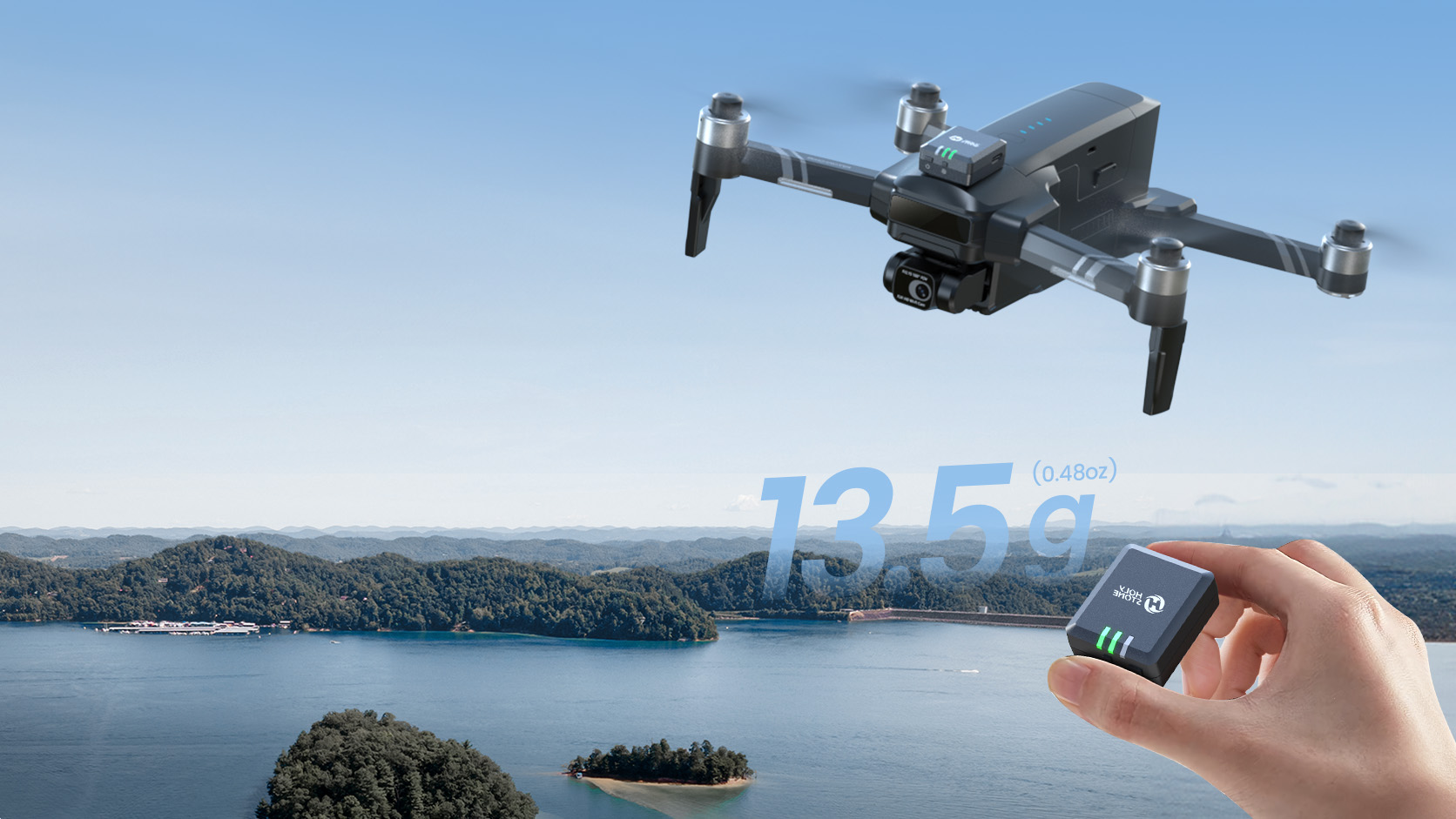
Drone Remote ID, Explained.
FAA Rules, Setup, Compatibility & Real-World Questions
Understand when Remote ID applies, how Holy Stone modules fit into the FAA workflow, and what pilots should know about broadcasting, registration, placement and everyday use.
Remote ID is the FAA’s broadcast-identification framework for drones that are required to be registered or are registered. This guide connects the rule itself with Holy Stone aircraft, broadcast modules, setup, registration and common troubleshooting questions.
Start with the decision path below, then use the product and installation sections to match the rule to your aircraft and flying scenario.
Current U.S. status — Remote ID enforcement is active. Pilots who must register or who have registered their drone generally need to comply through a Standard Remote ID drone, a Remote ID broadcast module, or permitted FRIA operations. Check FAA guidance ↗
FAA Remote ID Basics
Remote ID can be understood as three compliance paths: use a drone with Standard Remote ID built in, add a compliant broadcast module when appropriate, or operate within an eligible FAA-Recognized Identification Area (FRIA). Registration and Remote ID setup should match the aircraft and type of operation shown in your FAA account.
Standard Remote ID
The aircraft has an FAA-accepted built-in Remote ID system and broadcasts the required message during flight.
Broadcast Module
An existing drone can use a compliant Remote ID broadcast module when that path applies to the operation.
FRIA Operation
An eligible drone without Remote ID may be flown within an FAA-Recognized Identification Area under the applicable rules.
Match the rule to your operation
In the U.S., Remote ID requirements are tied to registration and the type of operation. A sub-250g recreational drone can fall into a simpler registration/Remote ID situation, while registered aircraft generally need an applicable compliance path.
Beginning September 16, 2023, all drone pilots who are required to register their UAS must operate in accordance with the rule on Remote ID.
Remote ID Enforcement Date Extension: The FAA extended enforcement six months, giving pilots who were unable to comply with the broadcast requirement until March 16, 2024 to equip their aircraft. This date is historical; the current-status note above reflects the article’s present guidance.
Drones That May Not Need Remote ID
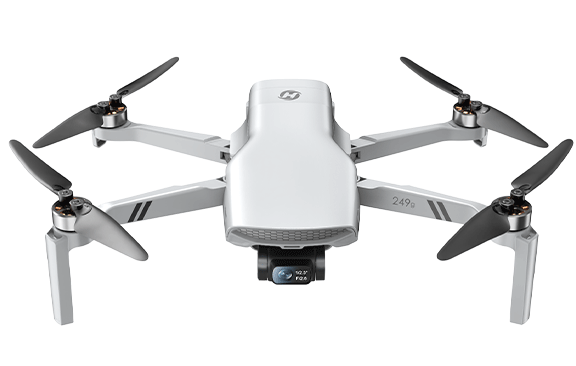
Drones under 250g — including HS900 PRO, HS360G, HS900, HS360S, HS360E, HS360D, HS175G and HS175D — can fall into a simpler recreational Remote ID/registration situation in the U.S. when they are flown only for recreation. Always verify the rule that applies to your exact use case.
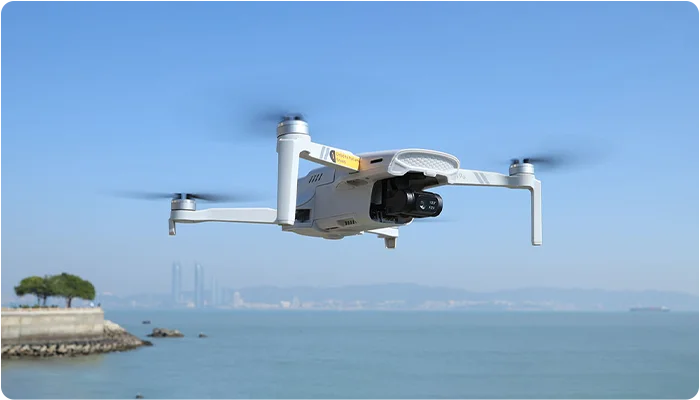
HS900 PRO — Lightweight Premium Camera Drone
Premium imaging and mechanical stabilization in a sub-249g platform for travel, aerial storytelling and everyday creation.
Best for: Travel & Aerial Storytelling
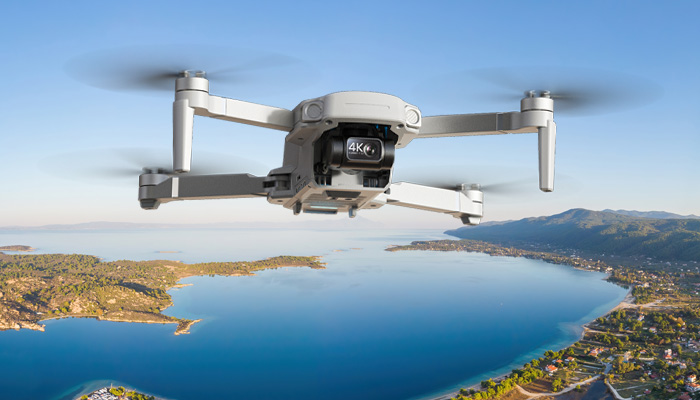
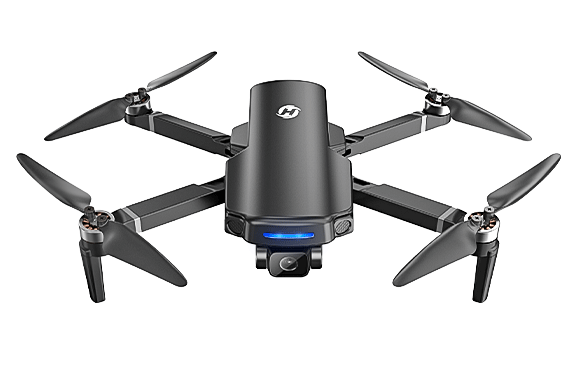
HS360G, 3-Axis Gimbal Camera Drone
A 249g gimbal drone for first-time aerial creators who want smoother video without moving into a heavier aircraft class.
Best for: First Gimbal Drone & Travel Shooting
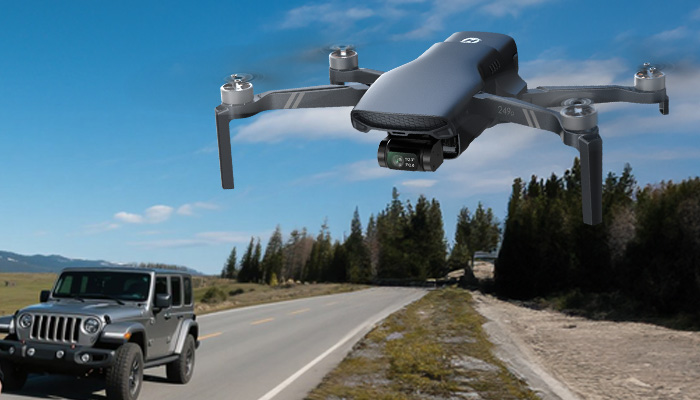
HS900, 48MP Camera Drone
A 249g photography-focused drone with a 3-axis gimbal and high-resolution camera for creators who want more control over aerial footage.
Best for: Aerial Photography & Smooth Video
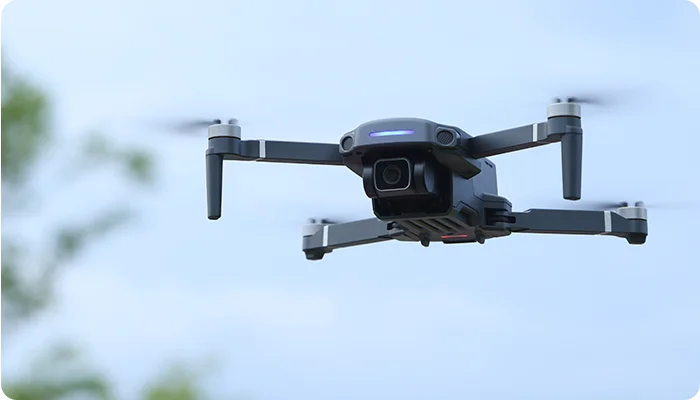
HS360S, 4K Long-Range FPV Camera Drone
This model is included in the article’s no-external-module-needed group for the specific recreational use case described in this section.
Best for: Outdoor Enthusiasts
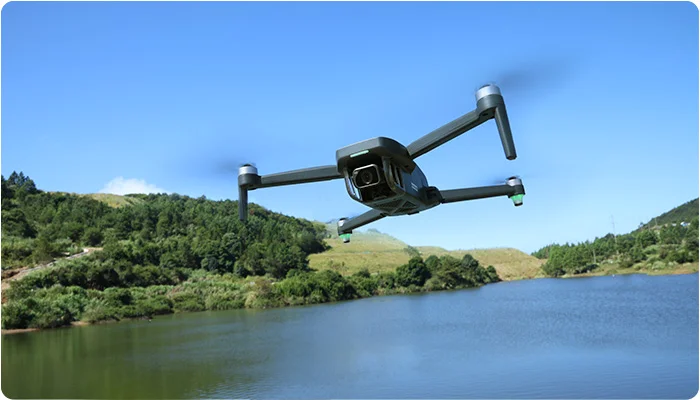
HS175G, GPS Drone for Beginners
This model is included in the article’s no-external-module-needed group for the specific recreational use case described in this section.
Best for: Beginner Drone Hobbyists
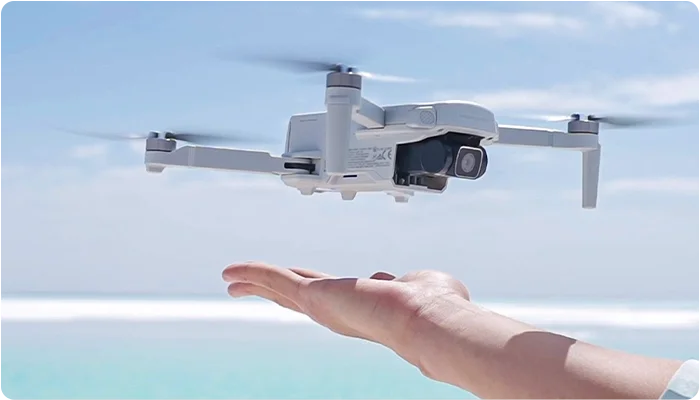
HS360E, Long-Range GPS Drone with EIS
This model is included in the article’s no-external-module-needed group for the specific recreational use case described in this section.
Best for: First-Time GPS Drone Pilots
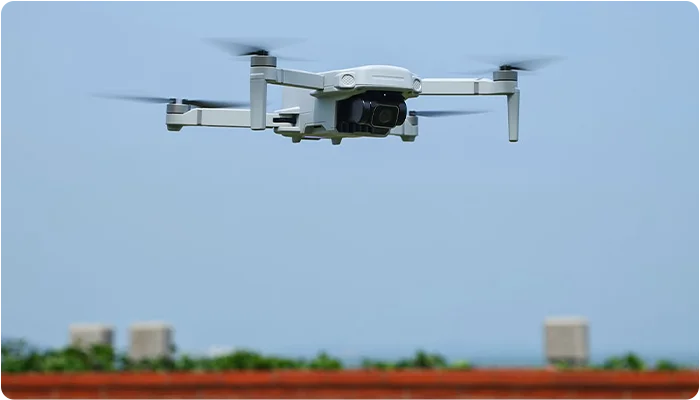
HS360D, Expedition Utility Drone
This model is included in the article’s no-external-module-needed group for the specific recreational use case described in this section.
Best for: Outdoor Exploration & Inspection
Holy Stone Drones with Built-in Remote ID
Some Holy Stone drones over 250g are designed with built-in Standard Remote ID, so an additional broadcast module is not required for the Remote ID function. These models are the simpler path for pilots who want the Remote ID hardware integrated into the aircraft.
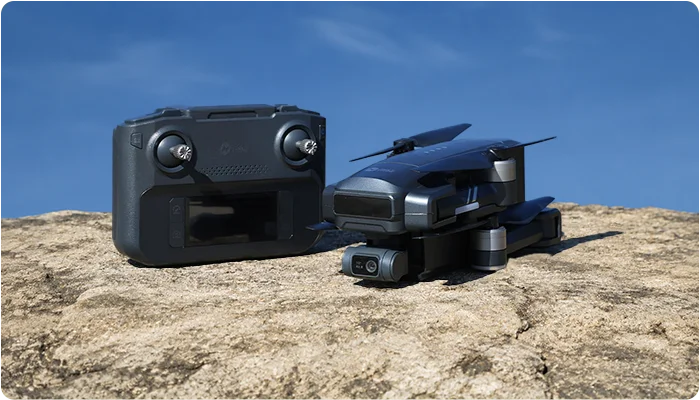
HS600D, GPS Camera Drone with Built-in Remote ID
This model is included in the article’s built-in Remote ID group, connecting the rule explained above to a current Holy Stone aircraft.
Best for: Outdoor Stability & Clear 4K Flights
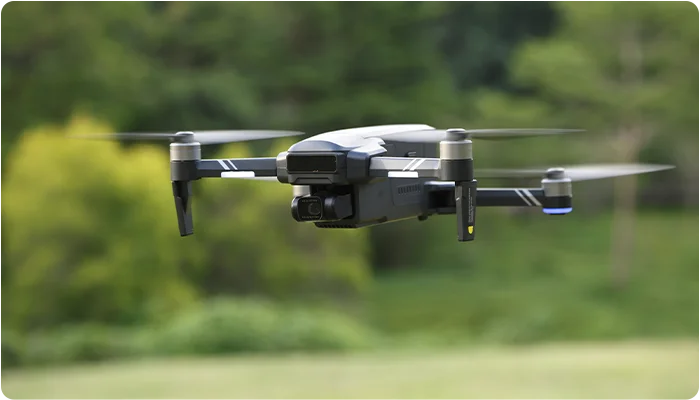
HS600, 4K GPS Drone with Built-in Remote ID
This model is included in the article’s built-in Remote ID group, connecting the rule explained above to a current Holy Stone aircraft.
Best for: Outdoor Flying & Long-Range Practice
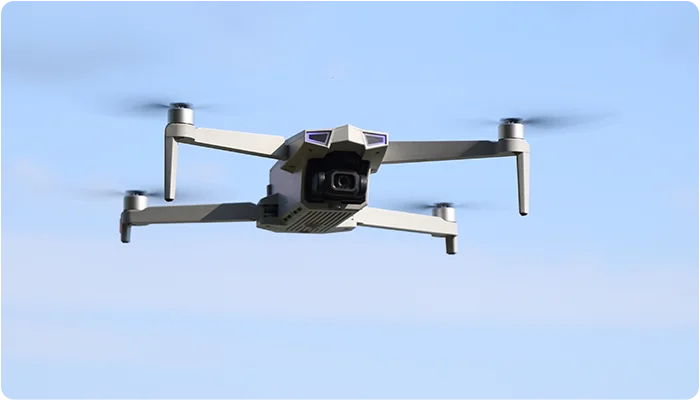
HS790, GPS Camera Drone Kit with Built-in Remote ID
This model is included in the article’s built-in Remote ID group, connecting the rule explained above to a current Holy Stone aircraft.
Best for: Complete Outdoor Flying Setup
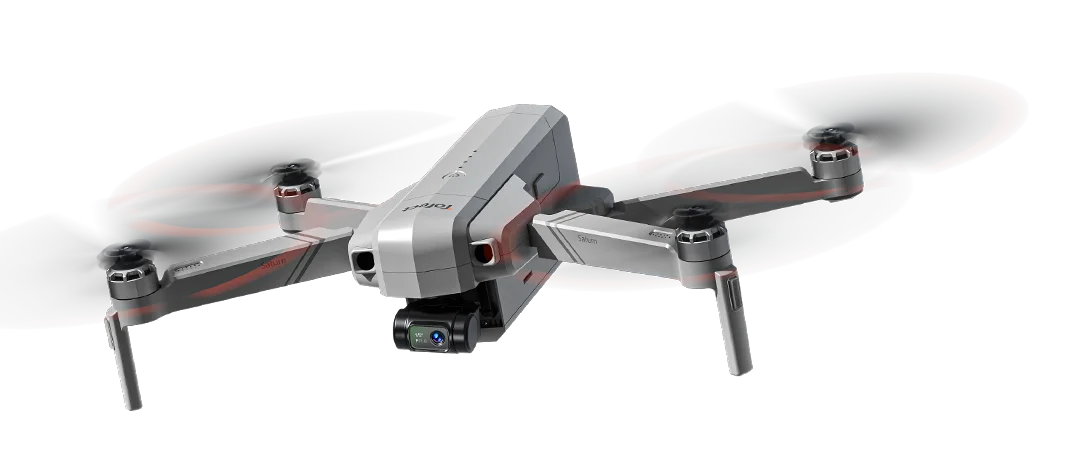
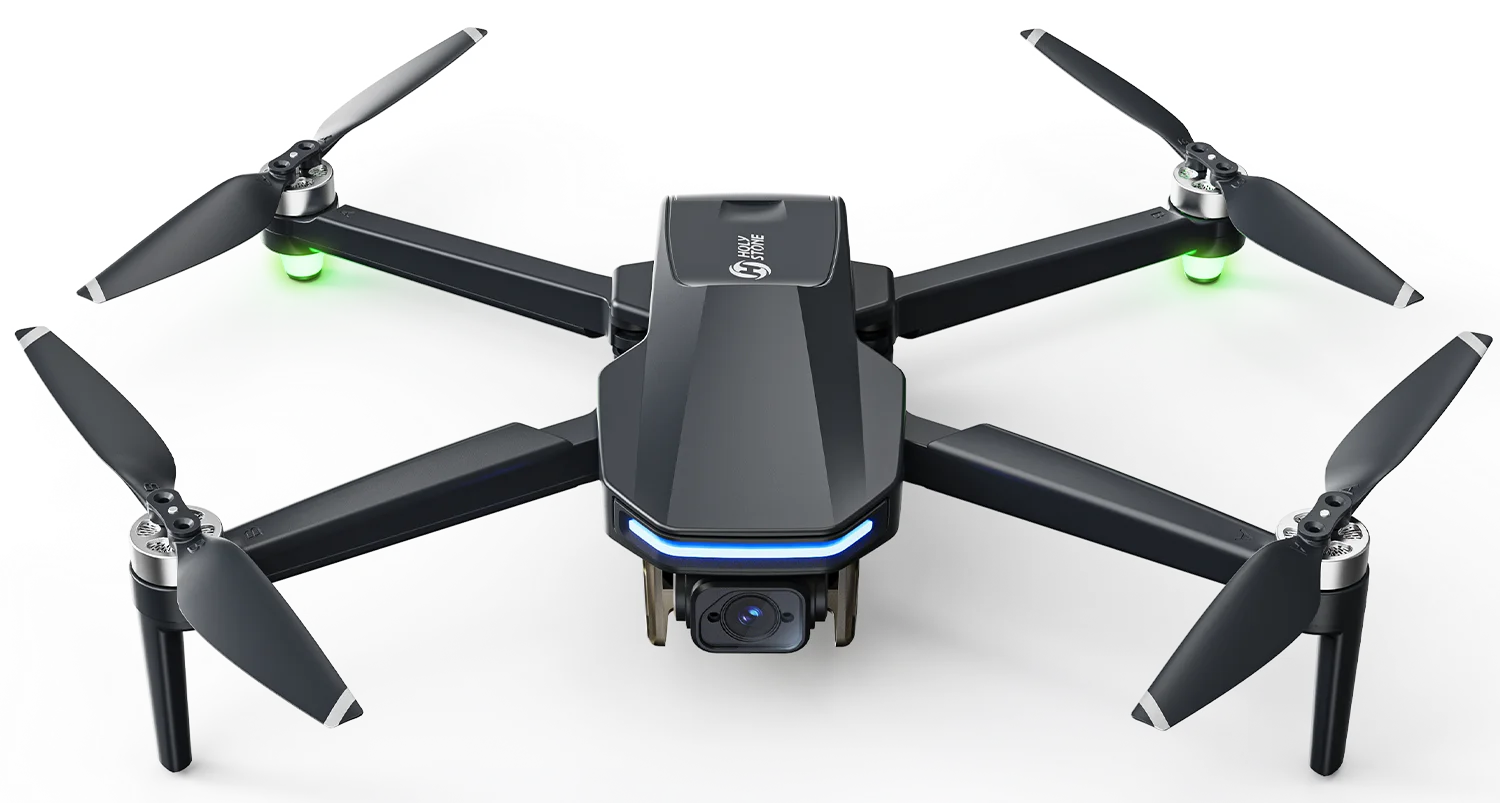
T60A, Long-Range Creator Drone with Built-in Remote ID
A performance-focused outdoor camera drone with built-in Remote ID, a larger Sony sensor, long-range transmission and stabilized 4K imaging.
Best for: Long-Range Outdoor Creation
Note: Specifications may vary by product version, firmware, region, or test environment. Please refer to the product page and user manual for the latest information.
Drones That Need a Remote ID Module
Compatible drones without built-in Standard Remote ID
If you are using a compatible drone without built-in Standard Remote ID — such as HS700E and certain HS720 series models — a Holy Stone Remote ID broadcast module can provide the module-based compliance path described in this guide.
Check these four things first
Holy Stone Remote ID Modules
Holy Stone HSRID02 and HSRID03 Remote ID modules are available on the Holy Stone Official Store. Choose the module that matches your aircraft and setup requirements, then continue to the installation guide below.
HSRID03
A Holy Stone Remote ID broadcast-module option for compatible aircraft that do not have built-in Standard Remote ID.
HSRID02
Another Holy Stone Remote ID broadcast-module option for compatible aircraft and applicable Remote ID setups.
Installation & Placement Guide
A good Remote ID installation comes down to three things: choose a safe position, keep the module stable, and verify its status before flight. The guide below keeps the setup compact so you can scan the process without losing the important details.
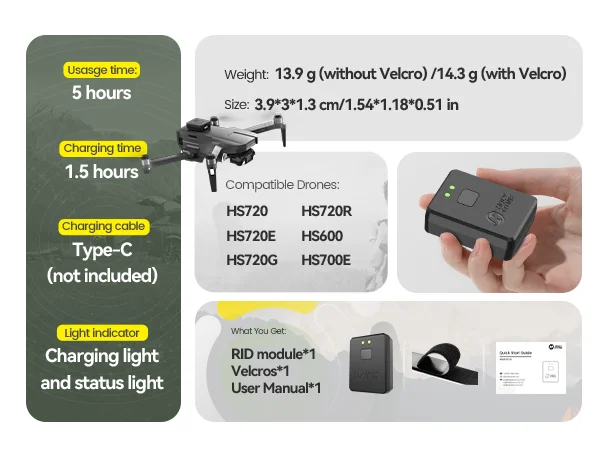
Know the module before installation
The Holy Stone broadcast module is designed for compatible aircraft that do not have built-in Standard Remote ID. Check the core specs first so the module and aircraft setup match.
Place it where GPS performance and safety both make sense
The ideal position varies by drone model, but the goal stays the same: keep the module visible, stable and away from parts that may create physical risk or signal interference.
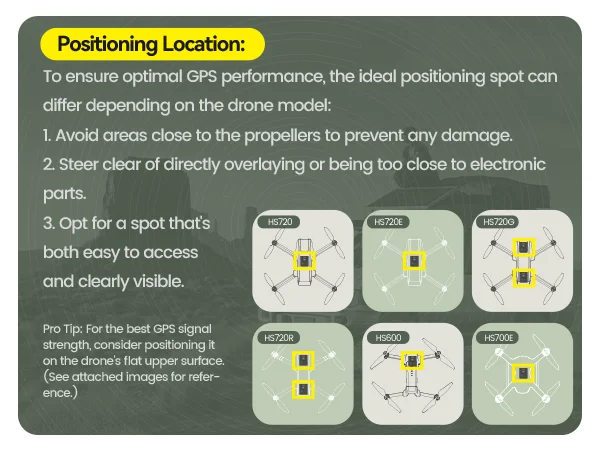
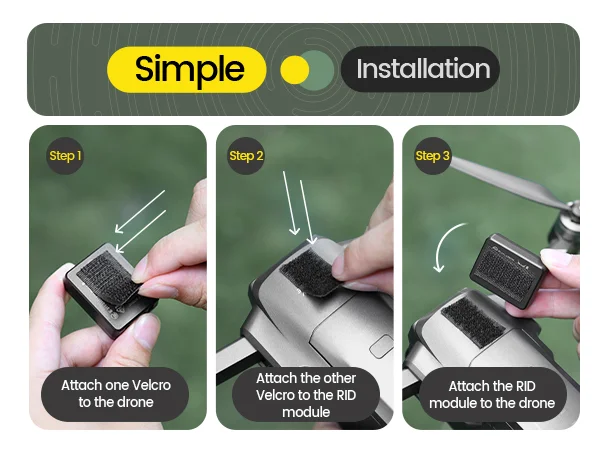
Install the module in three clear steps
Remote ID Setup & Updates
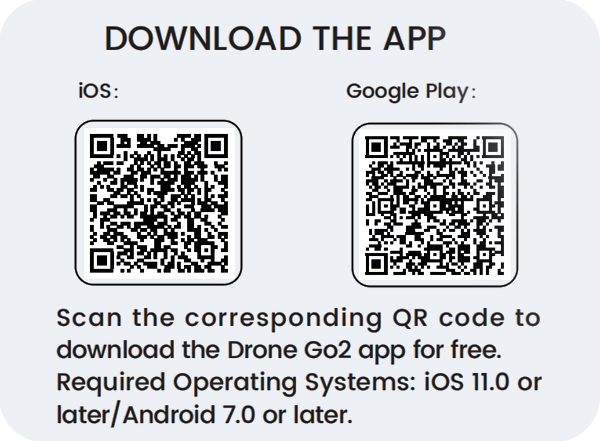
Use the Drone Go2 app to complete first-time setup, save identity information, or update previously stored data. The process below keeps the original setup instructions, but separates first-time setup from later identity changes so each task is easier to follow.
Drone Go2
Required operating systems: iOS 11.0 or later, or Android 7.0 or later.
Connect the app and complete first-time setup
Complete these steps in order. After saving, restart the Remote ID module and confirm the status light before flight.
Edit or reset stored identity information
Use this flow when the module already contains saved identity information and you need to replace or update it.
Quick checklist
Broadcasting & Compatibility Issues
If a Remote ID signal does not appear in a third-party app, check the module itself before assuming the broadcast has failed. Power, GNSS conditions, setup data, installation and phone/app compatibility can all affect what you see on screen.
Troubleshoot the module before blaming the app
Power, module status, GNSS conditions, setup data and physical installation should be checked before assuming the broadcast has failed.
Why can’t I receive Remote ID broadcast information?
Due to third-party APP compatibility, some mobile phones may not receive the signal from the RID module. We have tried to test compatibility on one of the third-party applications — OpenDroneID — with some phones.
Drone Operator Registration
To complete Remote ID setup, pilots may also need the registration or operator information required for their type of operation and region. The registration path is different for U.S. recreational flyers, Part 107 operators and European customers.
One recreational inventory
A broadcast-module serial number can be listed in a recreational inventory for eligible non-Standard Remote ID drones.
Register each device separately
Part 107 registration is handled differently, so pilots should follow the FAA registration workflow that matches their operation.
FAA DroneZone Registration
U.S. pilots can use FAA DroneZone to create an account and complete the registration workflow that matches their operation.
Open FAA DroneZone →Register in three steps
Have these details ready
Remote ID Module FAQ
Can one Remote ID module be used for multiple drones?
Recreational drone pilots can use one Remote ID module for multiple drones by listing the required serial-number information in their inventory. Part 107 pilots follow a different registration path and must register each device separately.
One inventory, module can move between listed drones
Register each device separately
“Recreational drone pilots may register once and apply their registration number to all the devices listed within their inventory. During registration, you must list the serial number(s) of each Standard Remote ID drone and/or the Remote ID broadcast module. If you use a Remote ID broadcast module, the Remote ID serial number attached to the module must be listed for each non-Standard Remote ID drone you add to your inventory. This will permit you to move the module from one non-Standard Remote ID drone to another so long as each of the drones make/model are listed within the same inventory.”
“This is not the case for Part 107 pilots who must register each individual device, Standard Remote ID drone or Remote ID broadcast module, separately within their inventory and each device will get a unique registration number.”
Holy Stone Remote ID Setup & Updates
Watch the full setup tutorial if you prefer to follow the Remote ID process visually.
Questions Drone Pilots Debate Most About Remote ID
Across pilot communities, the recurring questions are less about the basic definition and more about privacy, detection range, registration, app behavior, module portability and installation trade-offs.
International Remote ID Rules & FRIA
Remote ID is not limited to the United States. The original article also points to requirements in the EU and Japan, while U.S. pilots may have an additional path through an FAA-Recognized Identification Area (FRIA).
EU Remote ID timing
In the EU, if you're flying a drone heavier than 249 grams, mark your calendar for January 1, 2024.
Japan has applied Remote ID rules since 2022
In Japan, the article notes June 20, 2022, and states that drones over 100 grams need Remote ID.
Three paths described in the article
Standard Remote ID Drone
Use a drone that comes with built-in Remote ID broadcast capability.
Broadcast Module
Add a Remote ID broadcast module to a compatible drone when that compliance path applies.
FRIA Operation
At an FAA-Recognized Identification Area, eligible drones and radio-controlled aircraft can operate without Remote ID broadcast equipment under the applicable rules.
What is an FAA-Recognized Identification Area?
FRIAs are locations sponsored by FAA-recognized Community Based Organizations (CBOs) or educational institutions. The original article describes them as places where drones and radio-controlled airplanes may operate without Remote ID broadcast equipment under the applicable rules.
Who can apply for a FRIA?
FRIA applications are limited to FAA-recognized Community Based Organizations (CBOs) and educational institutions.
Continue Exploring Drone Systems
Remote ID is one part of a much larger drone system. Continue with the two technical guides below to understand how the aircraft stays stable in the air and how information moves between the drone and the pilot.
Flight Control System
Learn how the flight controller combines sensor data, stabilization logic and pilot inputs to keep the aircraft balanced and responsive.
Wireless Communication System
See how command, FPV video and telemetry links move data between the remote controller, aircraft and mobile device during flight.
Do You Need Remote ID?
Start with the aircraft’s registration status and operating scenario, then confirm the current FAA requirement before flying.


COMMENTS